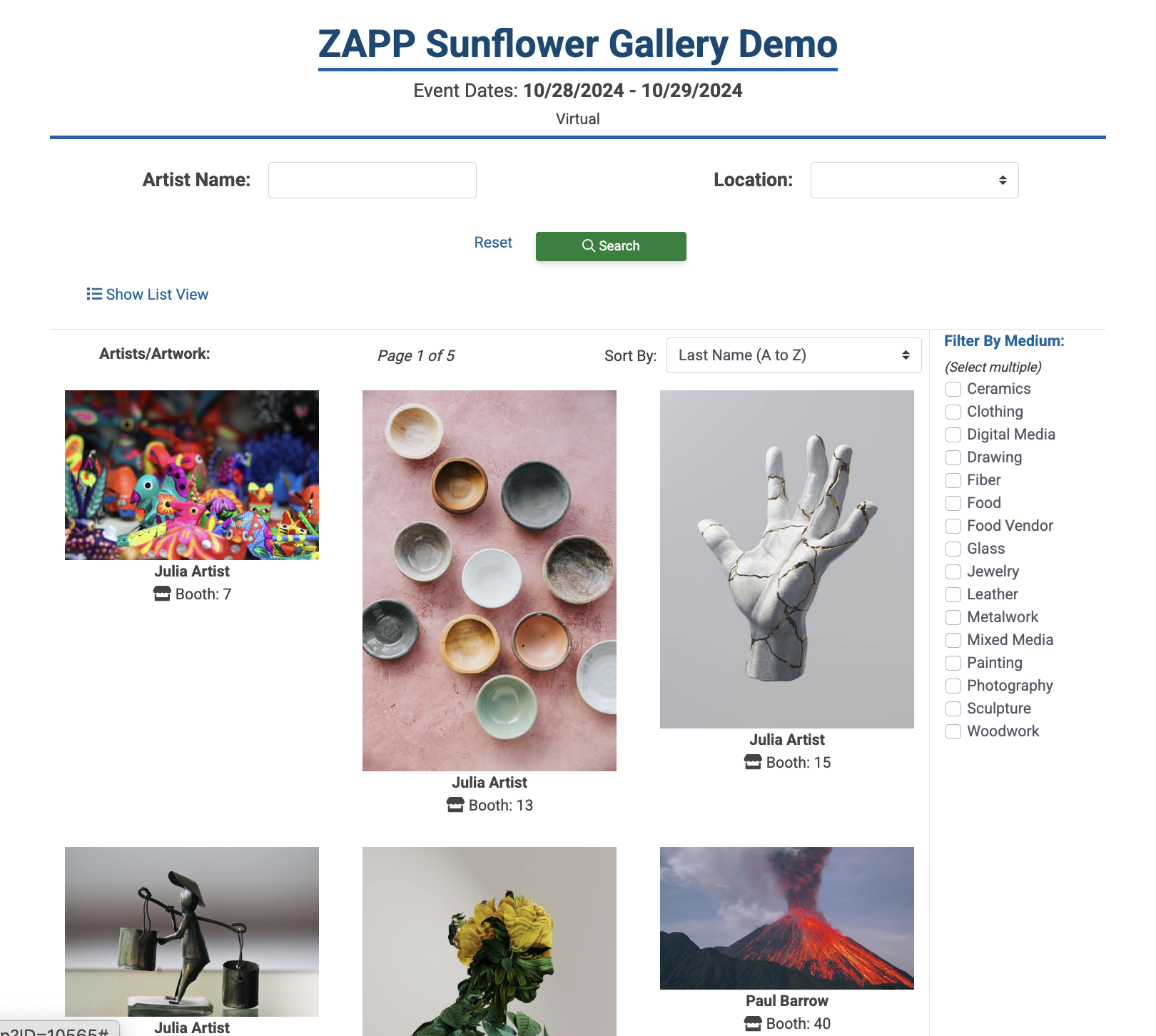

About the ZAPP Gallery
The ZAPP Gallery will automatically generate a gallery view of your participating artists and their work, which patrons can view on ZAPP or directly on your site. Setting up the gallery is simple:
1. Activate 🟢
The ZAPP Gallery can be added to any active event you have on ZAPP. Once you sign up and pay, the ZAPP team will activate the Gallery for you.
2. Set Up 🛠️
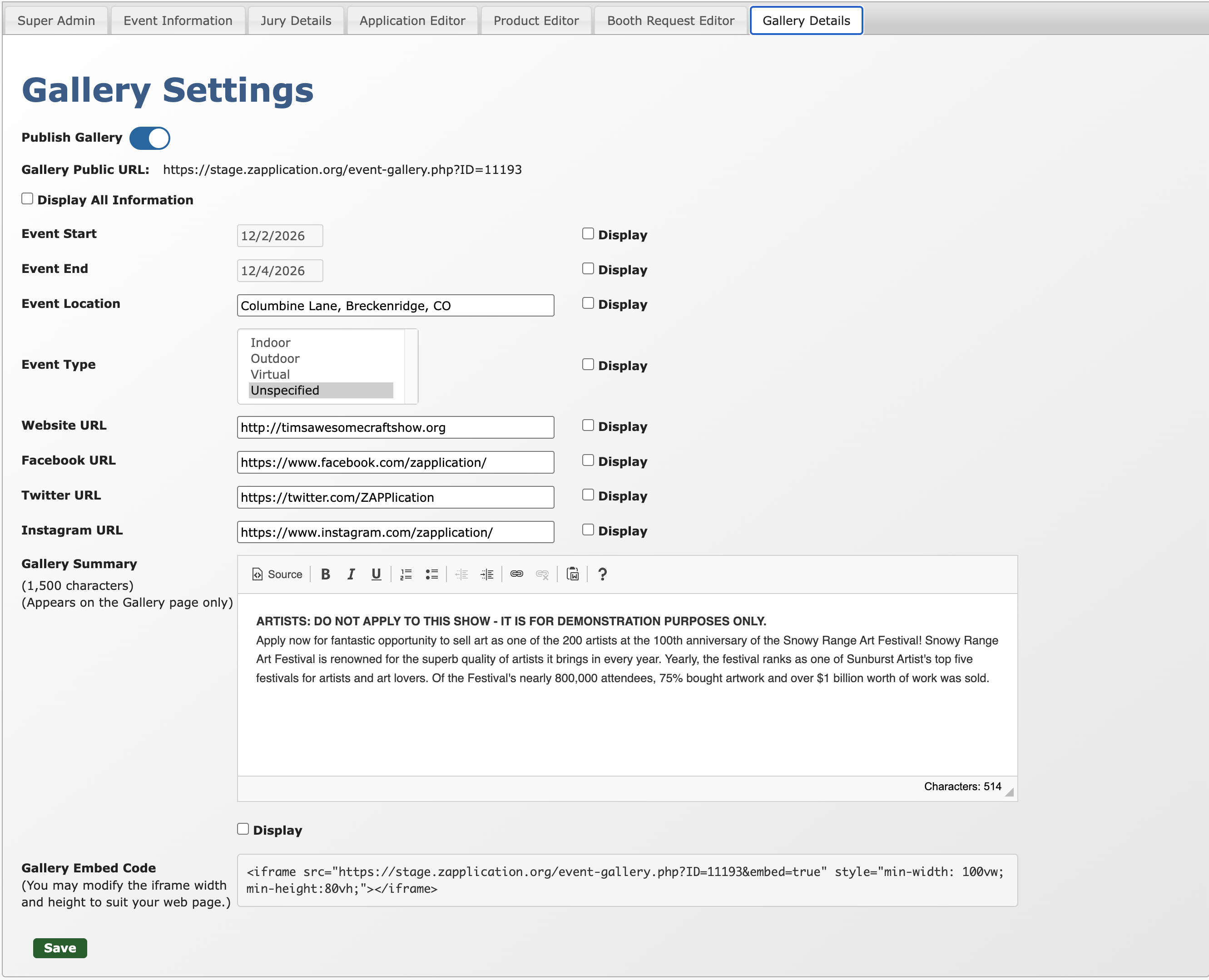
Once active, the Gallery Details tab of your Event Editor is where you will adjust the settings, add a short description, and retrieve the public gallery URL.
👉 Learn how to adjust the gallery settings.
3. Announce 📣
After you complete the setup, you’re ready to share your gallery with the public. Use your public URL in emails or social media posts announcing your artist lineup. You can also use the provided code to embed the gallery directly into your website.
👉 Learn how to share your gallery.
How to Set Up the Gallery 🛠️
In the Event Editor, select the Gallery Details tab.
Choose what information to display by checking the Display box next to each set of details, or check Display All Information if you want all details to appear. Your event name and logo will always appear.
Use the toggle at the top to publish or unpublish the gallery.
⚡ TIP: If your Gallery is published but you don’t yet have artists in the Accepted or Confirmed statuses, the page will show a message, “Artists Coming Soon.”
How to Share Your Gallery 📣
Once you set up your gallery, you’re ready to share your gallery with the public.
In the Gallery Details tab, locate the Gallery Public URL.
Be sure the Publish Gallery toggle is on.
Copy and paste this link in emails or social media posts announcing your artist lineup.
Copy the snippet of text in the Gallery Embed Code section to embed the gallery directly into your website.
⚡ TIP: The gallery embed code can be used anywhere on your website that accepts embedding. This feature can be used with most major website hosts, including WordPress, Wix, and Squarespace. The code can also be altered to fit the size of your site.