

Where to Find Jury Setup
Hover over Jury in the main navigation tab and select Administration.
Select your Event.
Click the Jury Setup tab on the Jury Administration page.
Setting Up Your Jury ⚙️
Jurors review images in a slideshow on their own devices. Images are shown one at a time, followed by a scorecard with a thumbnail view. Jurors can enter into full-screen mode and zoom in/out to see image details.
When you're ready to set up the jury, configure the following settings under Jury Setup on the Jury tab. The Jury Setup is divided into three sections:
General Settings
Scorecard Settings
Jurors

Configure your General Settings
This is the first step in configuring your jury.
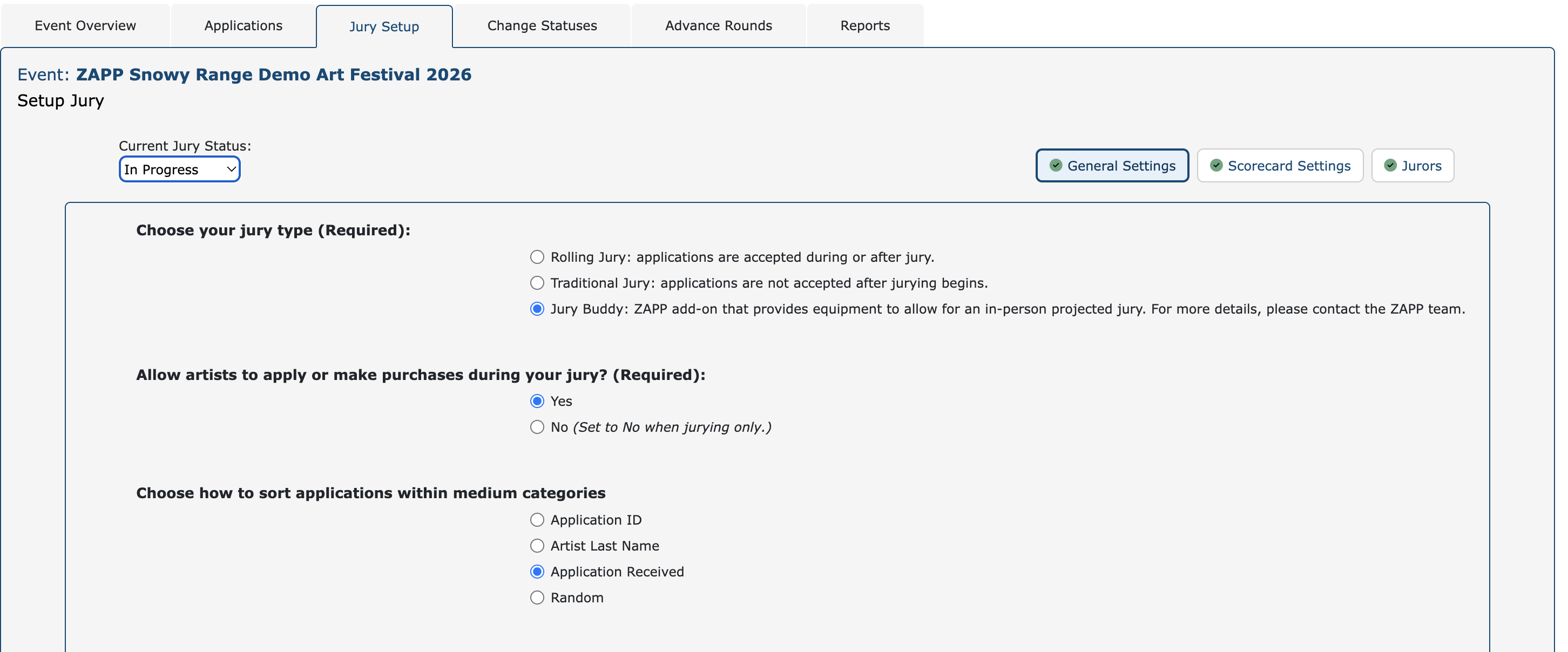
Select Rolling Jury if you accept applications and jury on a rolling basis. Events with ongoing or
flexible deadlines most often use this type.Select Traditional Jury if you do not accept applications after jurying begins.
Select Jury Buddy if you use the ZAPP add-on and equipment for an in-person projected jury.
Select yes to allow applicants to make purchases and see their application statuses while jurying is underway.
Select no to restrict purchases and hide applicants’ statuses.
Note: Selecting No will prevent artists from checking out for any fees, including application fees.
Applications will be sorted within each medium category in the selected method:
Application ID: Sorted ascending by application ID (app IDs are generated when an applicant starts their submission)
Artist Last Name: Sorted ascending by primary applicant last name.
Application Received: Sorted from earliest to latest date submitted
Random: Statistically random; the order of applicants will shuffle automatically with each new jury round.
Configure Your Scorecard Settings
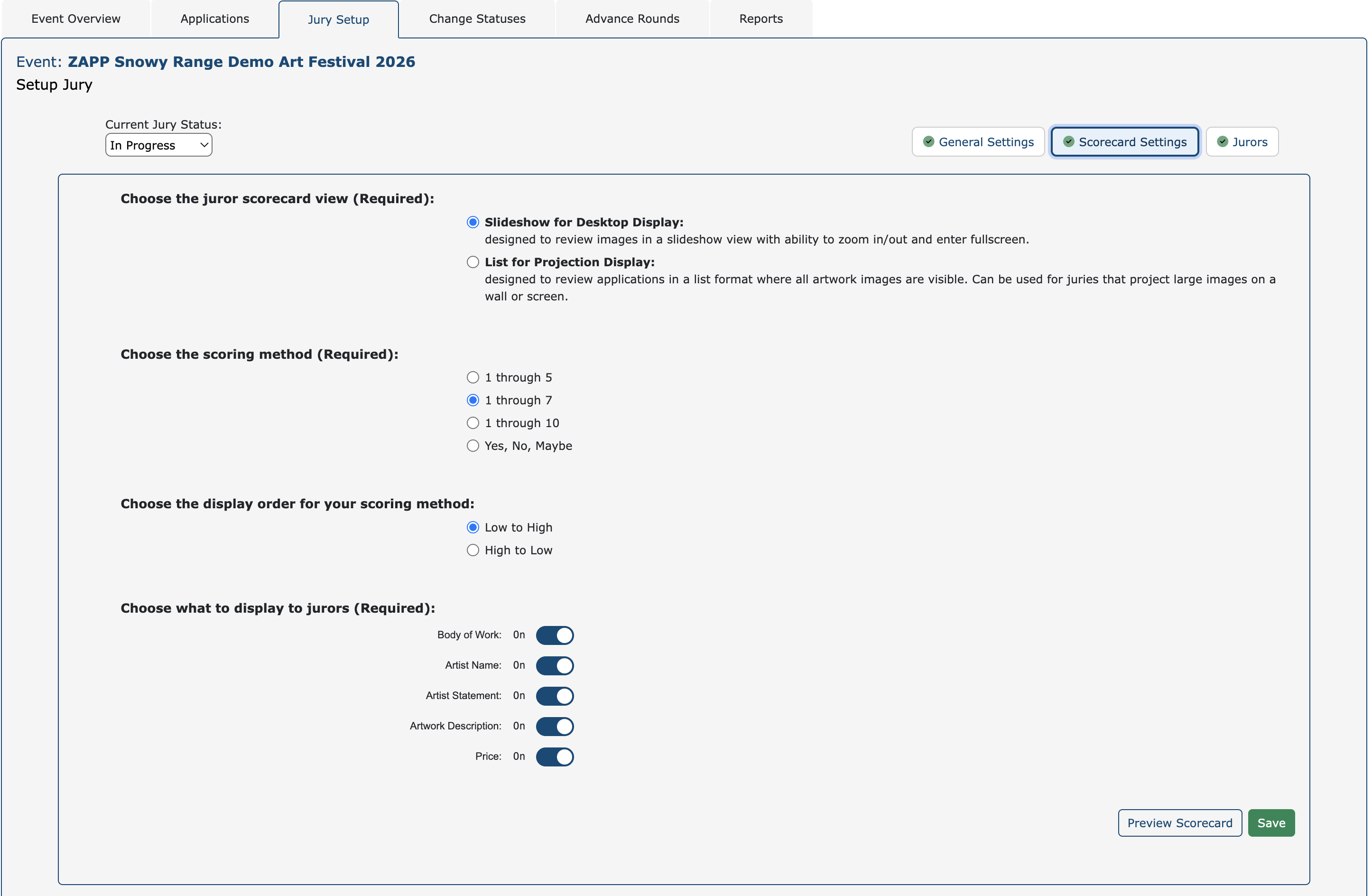
Select Slideshow for Desktop Display to display images individually in a slideshow with a body of work scorecard at the end of each applicant image set.
🖥️ Ideal for zooming in/out to see image details and remote jurying.
Select List for Projection Display to display images in a list format, where artwork thumbnails and scoring options display together.
📽️ Ideal for large juries using Jury Buddy and equipment to project images onto a wall or projector screen.
Choose from 1-5, 1-7, 1-10, or yes/no/maybe.
Choose low to high or high to low. The display will not affect the numerical value.
Note: Displaying low to high is the most accessible option.
Toggle on or off these settings to control what information shows to jurors:
Body of work: Adds a slide with thumbnails of the applicant’s images. When added, the juror sees: body of work slide >> each individual image >> scorecard.
Artist Name: Displays full name.
Artist Statement: Displays applicant’s statement of technique.
Artwork Description: Displays artwork descriptions for each image, when available. Artwork descriptions are optional for artists.
Price: Displays individual prices of each artwork submitted.
Click Preview Scorecard to view the scorecard as jurors will see it. Click Save to save preferences and move to Jurors.
Note: At least one application must be in the Received status for scorecard to generate.
Configure Your Jurors 👥
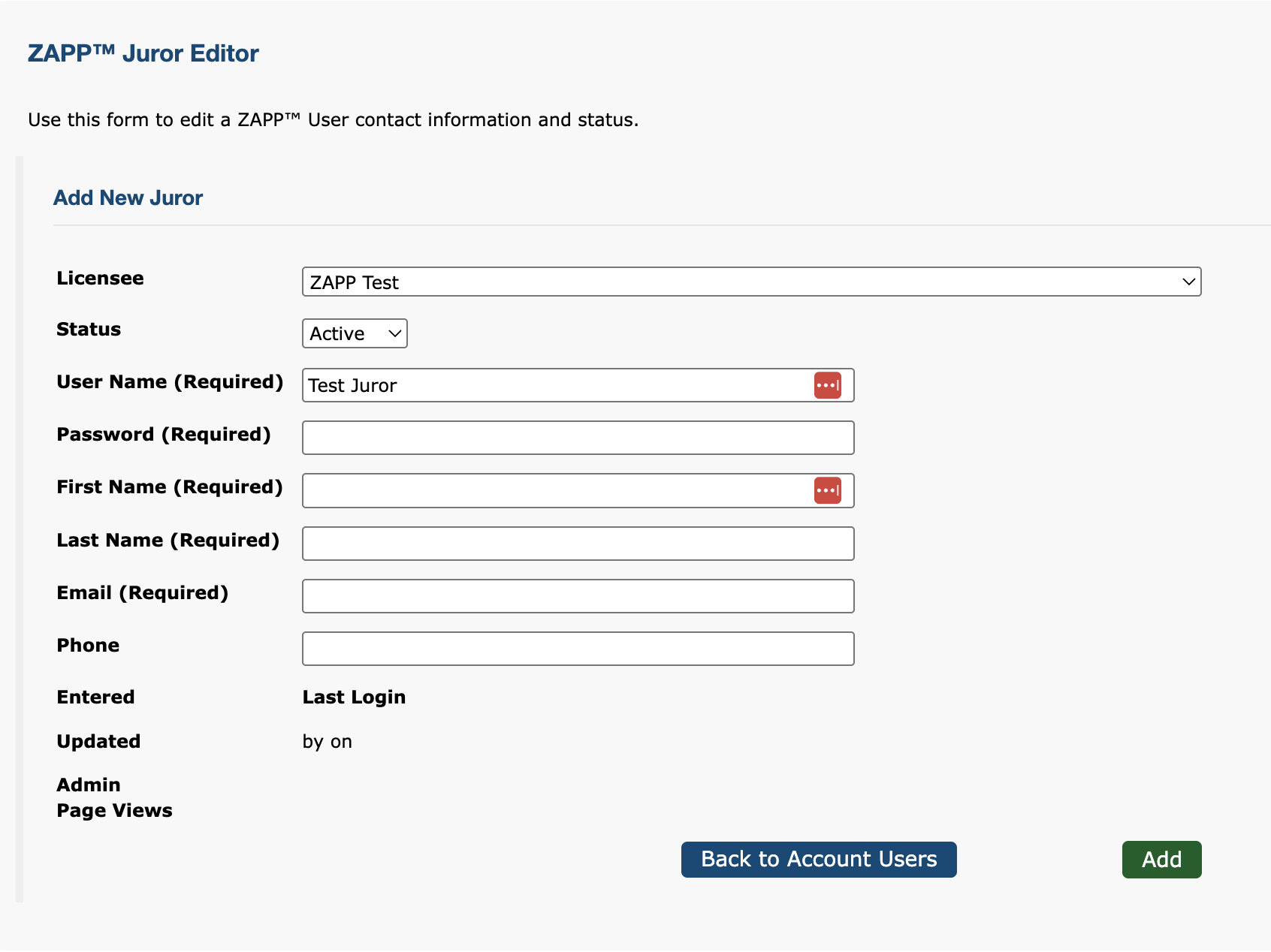
Click +Add New Juror to create a new juror account.
Fill in the required fields and click Add.
The Juror Editor page will reload. Check the box next to your event name and click Save.
Do not share the password. Instruct the new administrator to set up a password by entering their email address and username under Forgot Password on the Admin Login Page.
👉 Once you've configured your settings and created accounts, your jurors are ready to begin scoring. Share the Juror Help Center for step-by-step instructions and other information.