

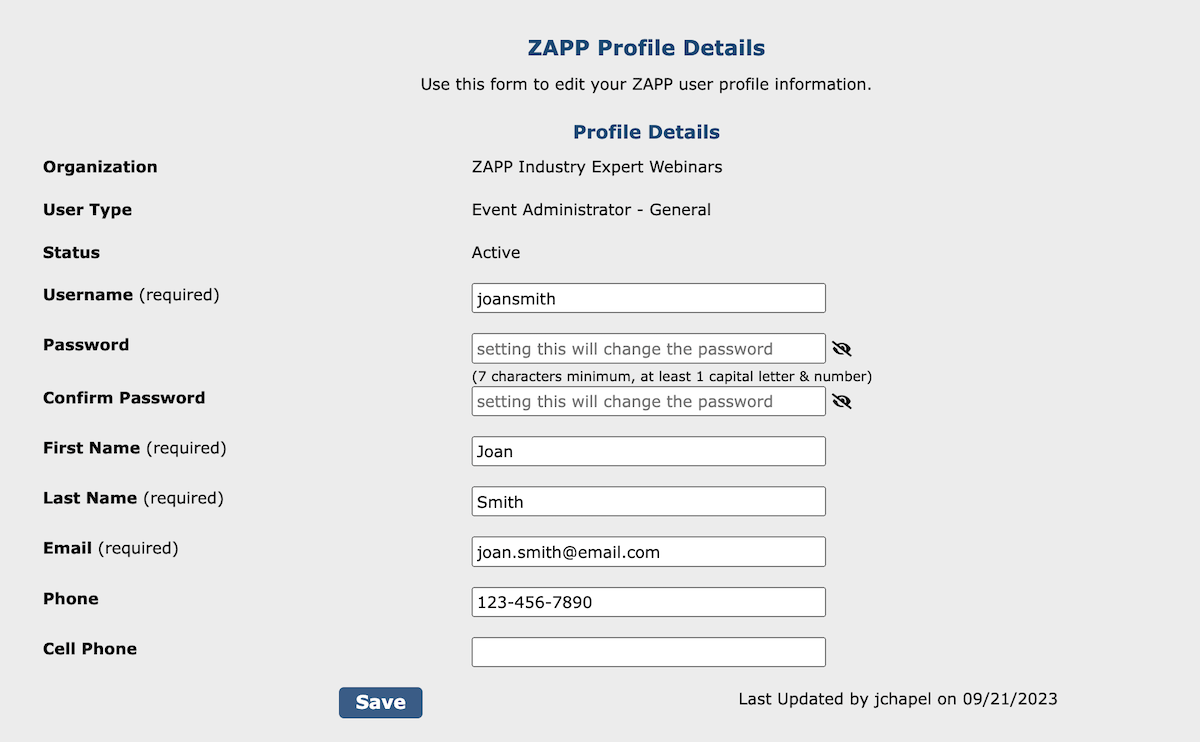
How to Update Your Contact Details 🙍
Log in to ZAPP Admin.
Click Profile.
Edit the fields to update your contact details.
Click Save 💾 to save the changes.
How to Change Your Password 🔒
Log in to ZAPP Admin.
Click Profile.
Enter a new password in the Password and Confirm Password fields.
Note: Passwords must be at least 7 characters, contain at least 1 uppercase letter, and at least 1 number.
Click Save 💾 to save your new password.
How to Update Your Notification Settings 🔔
Log in to ZAPP Admin.
Click Profile.
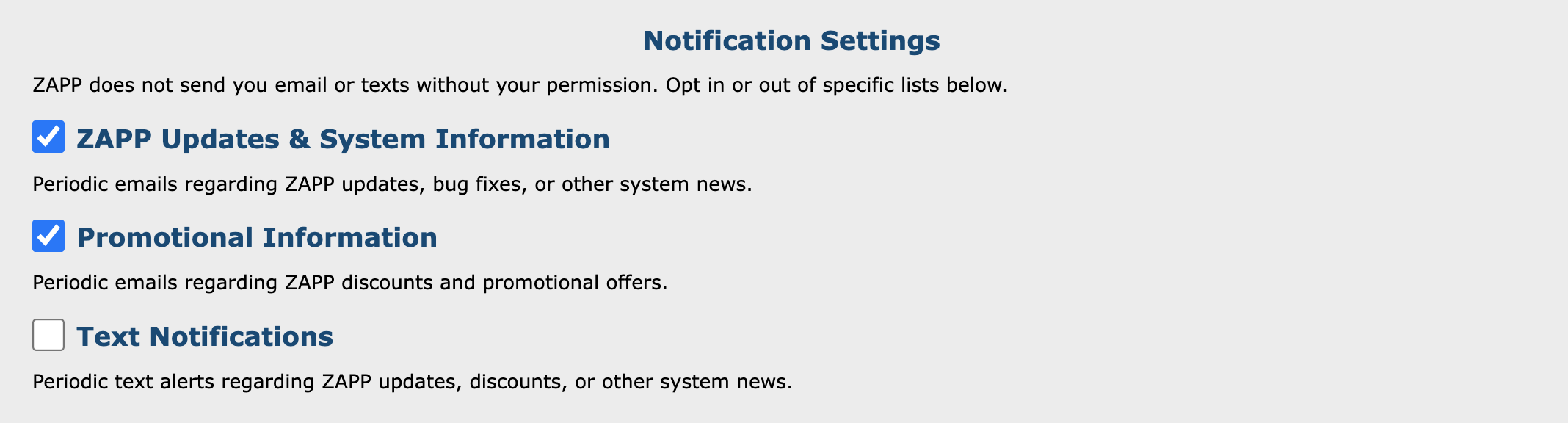
Scroll to the Notification Settings section.
Select or deselect the notification options based on your preferences.
Changes will be saved automatically.
How to Enable Multi-Factor Authentication 🔑
Log in to ZAPP Admin.
Click the Profile tab.
Scroll to the bottom of the page and locate the Multi-Factor Authentication settings.
Select the method you prefer to have the authentication code delivered to you.
Follow the instructions linked below for instructions on how to set up each MFA method:

⚡ TIP: If you do not want to set up multi-factor authentication, select Remind Me Later to get a reminder in two weeks.
How to Log In Using Multi-Factor Authentication:
Log in to ZAPP Admin.
When prompted, enter the MFA code that was sent to your email or authenticator app.
Select Remember this device if logging in from a trusted device (such as a computer or browser that only you use). You will be prompted to enter your MFA code on the same device every 90 days.
⚠️ Note: You can remember one ZAPP account (such as your administrator or juror account) per device. We suggest you select Remember this device? for the account you use more frequently.
Click Submit.
