

How to Set Up ZAPP Onsite 🛠️
Step 1: Enter the General Adjudication Information 🗓️
Log in to ZAPP Admin, click Onsite in the menu bar, and select your event.
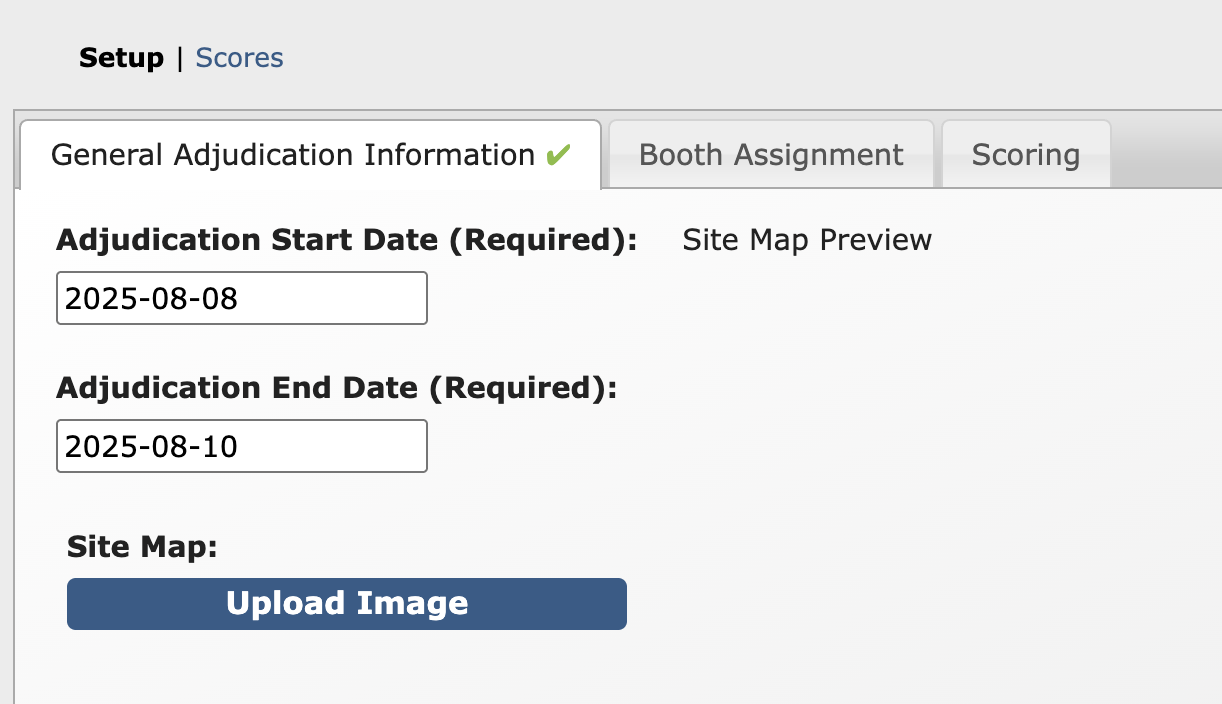
Enter the Adjudication Start and End Dates. Adjudicators can only log in and score on these dates.
Upload an image of your Site Map.
Click Save 💾 before continuing to the next step.
Step 2: Select & Add Your Adjudicators 🧑⚖️
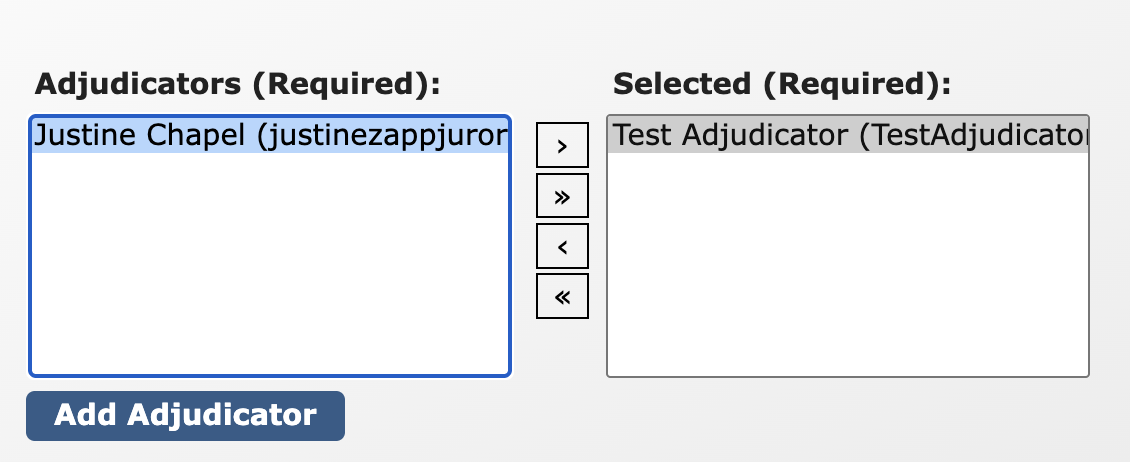
Jurors who scored during your initial jury will appear in the Adjudicators box. If any of them will score at your event, select their name(s) from the list and click the arrow ➡️ to move them to the Selected box.
Click Add Adjudicator to create a new adjudicator account.
Complete the required fields and click Add to save the new account.
On the next page, next to Jury Access, check the box next to the name of your event. This will give your adjudicator access to score the event.
Return to the Onsite page, and move the new adjudicator to the Selected box.
Click Save and Continue 💾.
Step 3: Assign Booths to Your Adjudicators 🔖
Go to the Booth Assignment tab of the Onsite page.
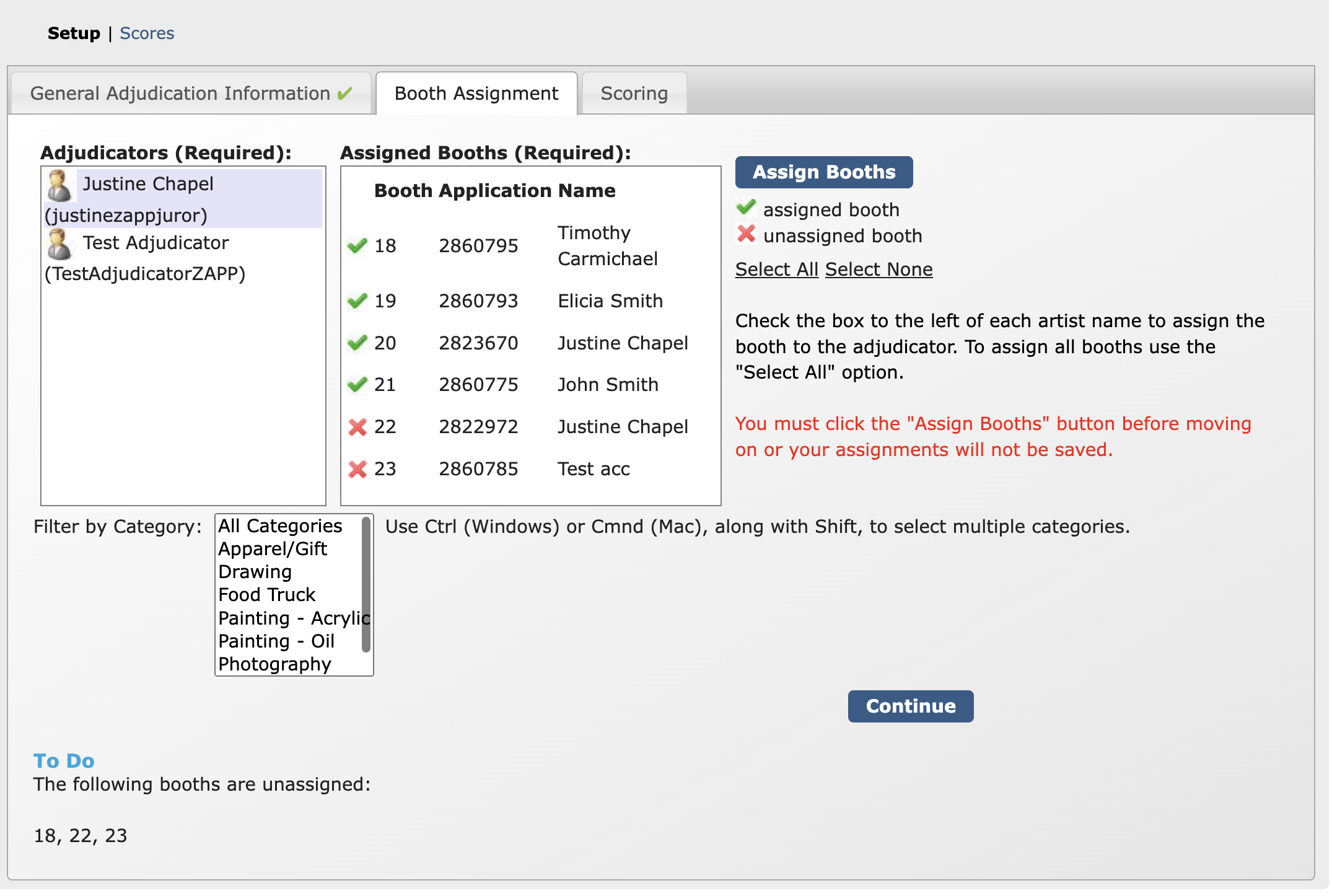
In the Adjudicators section, click on the name of the adjudicator you would like to assign first. You’ll see a list of all artists who have a booth number appear in the Assigned Booths section.
⚡ TIP: Filter the list of artists by category to assign adjudicators to booths in specific medium categories.
Click the red ❌ icon next to the artist’s booth number to assign the booth to the selected adjudicator. The icon will change to a green checkmark ✅.
⚡ TIP: Click Select All or Select None to assign all booths to a specific juror or to remove all assignments from that juror.
Click Assign Booths to save the assignments for that adjudicator. Repeat the steps for each adjudicator.
💡 Note: ZAPP Onsite will automatically check that every artist is assigned the same number of adjudicators. If any booths do not have an equal number of adjudicators assigned, they will display under the To Do section at the bottom of the page.
Click Continue to finalize your setup.
Step 4: Set Up the Scoring Criteria 📋
Go to the Scoring tab of the Onsite page.
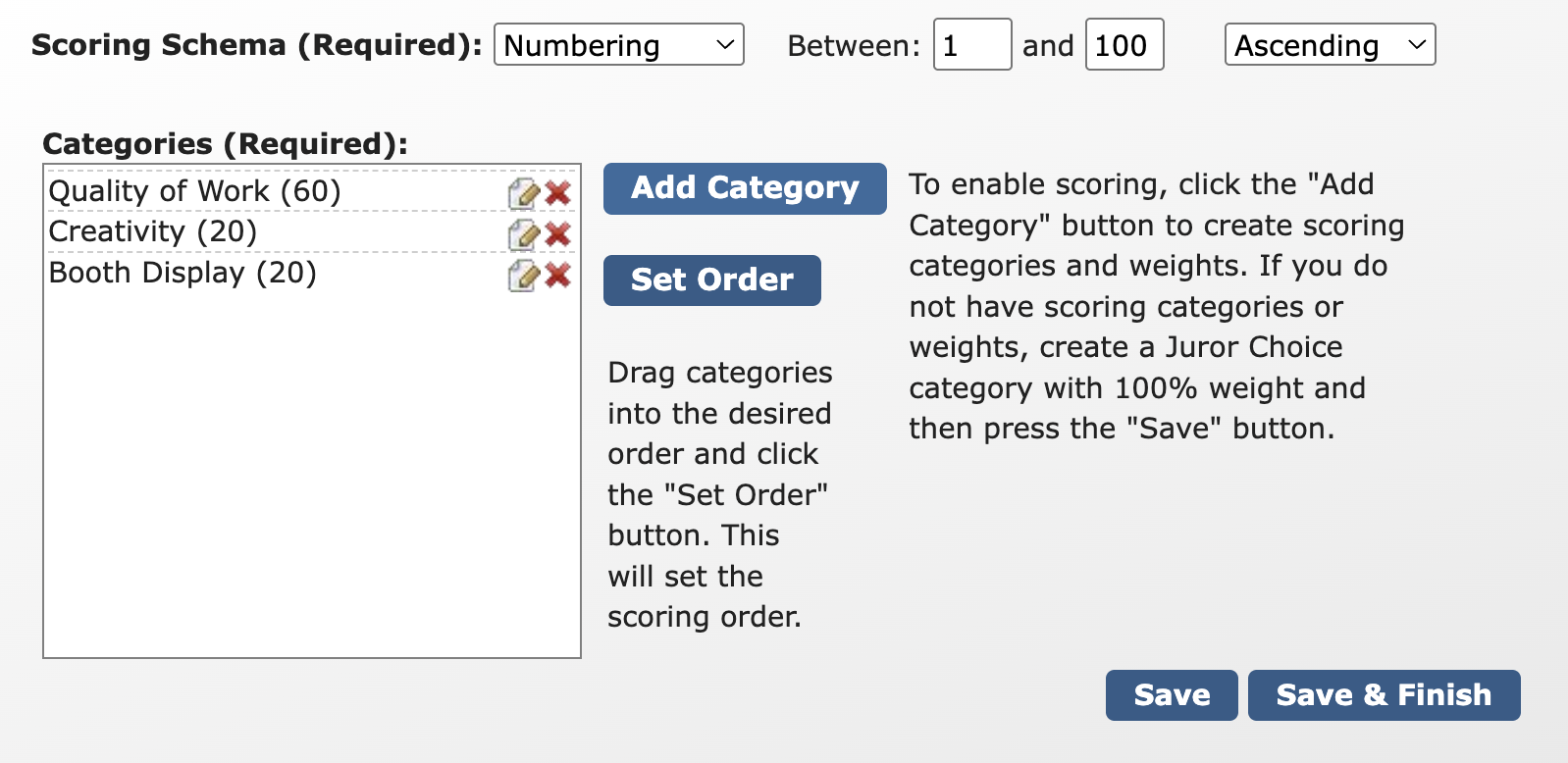
Next to Scoring Schema, select whether you'd like to score numerically, by Yes/No, or by Yes/No/Maybe. If scoring numerically, enter the scale for which you will score (e.g. 1-10, 1-100, etc.).
Click Add Category to create a scoring category (e.g. quality of work, creativity, booth display, etc.).
Enter the description and assign a weight to each category.
The weight will determine the impact each category has on the artist’s total score. The sum of every category's weight needs to equal 100%.
⚡ TIP: Keeping it simple? Add one, generic "Juror’s Choice” or “Score” category and set the weight to 100.
Click Save and Finish to complete your Onsite setup.
Tracking Scores 💯
On-site jurors (adjudicators) can log in to onsite.zapplication.org from their smart phone or tablet during your event dates. Scores will automatically sync with ZAPP, unless offline scoring is activated.
Click Scores on the Onsite page to track scoring progress.
👉 View and share the adjudicator instructions.
How to View and Download Scores 📊
Log in to ZAPP Admin, go to the Onsite tab, and select your event.
Click Scores to see the table of submitted scores.
If adjudicator(s) have yet to complete their scoring, an error message will display at the top.
On this page, you can view three reports:
Booth averages
Category averages
Adjudicator averages
Click Download XLSX to download a spreadsheet of any report.
Click any column header to sort the table in ascending or descending order.
Click the booth number to enter or edit a score manually. Click Update Scores to save the changes.
Use the reports to determine the award winner(s) for your event.
⚠️ Note: ZAPP Onsite does not retain scores year over year. To maintain historical data, download the spreadsheets after jurors are finished scoring.