

Adding a Question
1️⃣ Click Build New Question in the Application Editor.
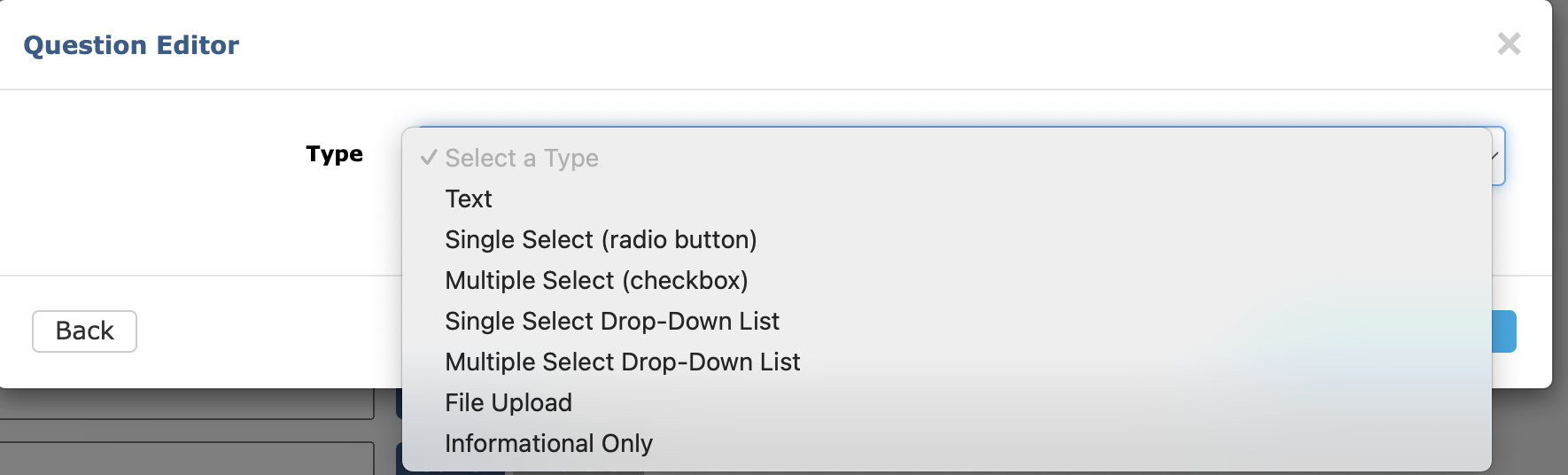
2️⃣ Choose one of the following question types from the drop-down menu:
💬 Text: Applicants will answer in a freeform text box. You can set a character limit for their answers.
☑️ Multiple Select (checkbox): Allows applicants to select one or more options from a list.
🔘 Single Select (radio button): Allows applicants to pick one single answer. Particularly useful for yes/no questions.
⬇️ Single Select Drop-Down List: Allows applicants to select one single answer from a drop-down list.
⬇️ Multiple Select Drop-Down List: Allows applicants to select one or more options from a drop-down list. Particularly useful for questions that have a long list of answer options.
🗒️ Informational Only: Instructional text that is useful for reiterating certain policies or application instructions. Applicants cannot answer this question.
3️⃣ Complete the following sections (depending on the question type selected):
Title: A name or description of your question. This is not visible to applicants.
Is an answer required for this question?: Selecting yes will require applicants to respond before submitting.
Question: Type your question as you want it to display on the application.
Character Limit: Enter the maximum number of characters allowed for the response or leave as 0 for unlimited. Only available for text question types.
Options: Add options for applicants to select when answering the question. Only available for multiple select question types.
To add answer options individually, enter the first option in the empty field and click Add Option +. Enter the second option in the new field and repeat the process for as many answer options as you need.
To add answer options in bulk, click Paste Multiple Options, One per line + and paste your list of answer options into the text box that appears. Ensure each option is separated by a line break. Click Create Options to generate the answer options.
Include Help Text: Check Yes to add additional information about the question. This will appear to applicants as they complete the application.
Using Conditional Logic
You can build questions that only appear when an applicant selects a specific answer to a previous question. This is useful when certain follow-up questions only apply to a subset of applicants.

🔍 Example
Let’s say you want to ask award winners a follow-up question. Start by creating a question like:
“Have you won an award at this event in the past?”
Then, create a second question:
“Which award did you win?”
On the second question, enable conditional logic so that it only appears if the applicant answered Yes to the first question. This keeps your application streamlined and ensures applicants only see questions that are relevant to them.