
A product in ZAPP can be a tangible item such as an electrical package for a booth or an intangible fee artists have to pay, such as an application fee.
Product Types
Choose the product that best matches what you are selling. Products are visible and available to purchase based on several factors:
Applicant Status - some products, such as booths, are not visible until the applicant has been invited to the event.
Dates - some products are time bound and only appear during the designated times you set for purchasing.
Purchase Eligibility - you can choose to restrict certain products to specific applicants only.
Product Status - you can choose to make products active or not active. Inactive products won’t appear for any applicant.
Product Type | Description | Visibility by Status |
Jury Fee | A required product that artists must purchase to submit an application. Set to $0 if you are not charging a fee. You can also create an Early Bird or Late Fee in addition to your Jury Fee and set them to activate or deactivate on specific dates. | Started, Ready for Submission |
Admin | An administrative fee that you want to make available to all applicants at any point before your event occurs. | Any status |
Booth | A fee type designed for post-jury workflows. You can add as many booth fees as you need with different prices, such as single, double, and corner booths. Applicants move to the Confirmed status when they purchase. | Exempt from Jury, Invited, Accepted, Confirmed |
Canopy | Can be used as a peripheral booth product. It will not change an applicant's status when purchased. | Exempt from Jury, Invited, Accepted, Confirmed |
Deposit | Can be used to collect partial payments of booth fees. It will not change an applicant's status when purchased but will add a "deposit" tag to the application. | Exempt from Jury, Invited, Accepted, Confirmed |
Electric | Can be used as a peripheral booth product. It will not change an applicant's status when purchased. | Exempt from Jury, Invited, Accepted, Confirmed |
Other | A product used for miscellaneous fees. It will not change an applicant's status when purchased. | Any status except Started and Ready for Submission. |
Tent | Can be used as a peripheral booth product. It will not change an applicant's status when purchased. | Exempt from Jury, Invited, Accepted, Confirmed |
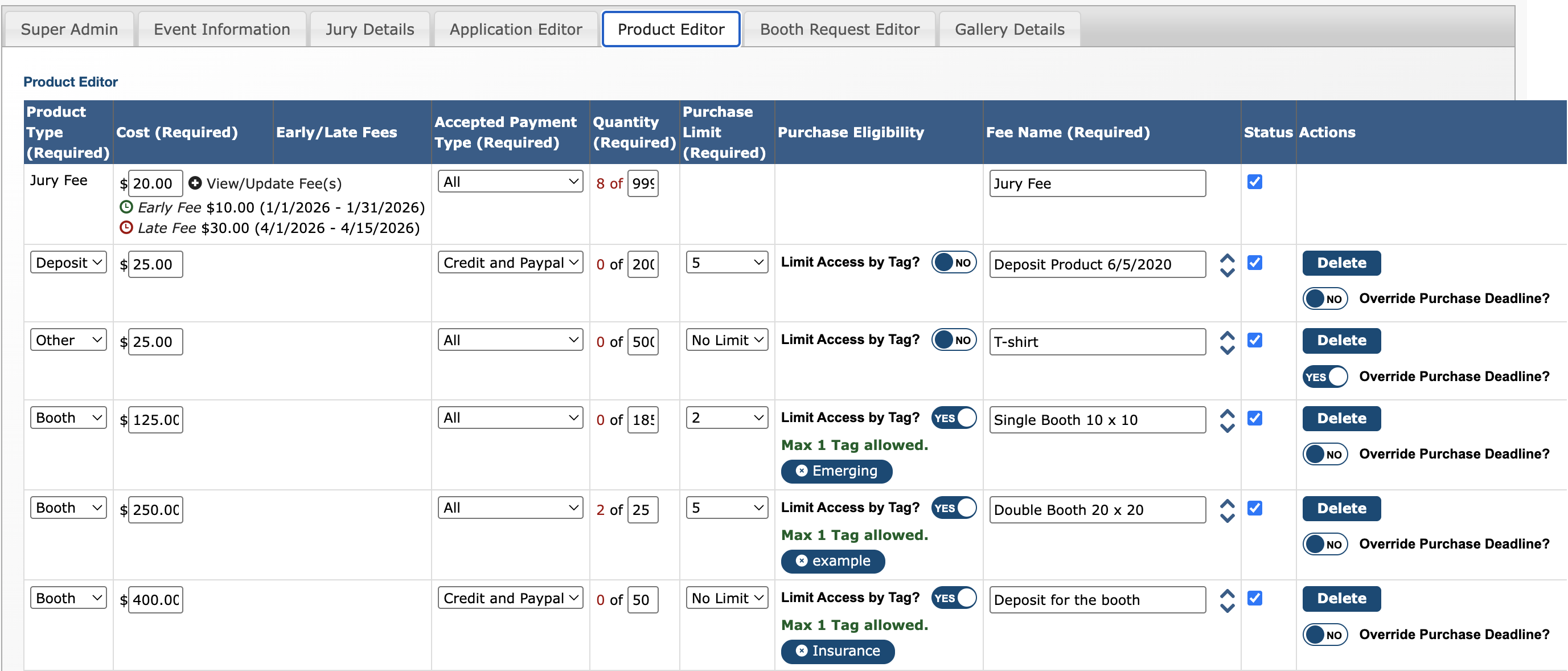
Product Editor Settings
After selecting the product type, configure the following fields and settings for each product you add.
💰 Cost: The total cost of the product.
⏰ Early/Late Fees: Add early-bird or late fees if you have multiple price points based on application windows. This will apply different fees within your specified date ranges.
💳 Accepted Payment Type: The payment methods you allow artists to pay with.
🔢 Quantity: The total number of products available, or the maximum amount. Once this number is met, artists will not be able to add the product to their cart.
🎯 Purchase Limit: The maximum number of times the product can be purchased by a single applicant. Unavailable on jury/application fees.
🔐 Purchase Eligibility: Toggle on to restrict purchases of that product to those with a specific tag on their applications. Learn more.
📝 Fee Name: A description of the product or service.
✅ Status: Check the box to activate the product.
👉 Actions: Remove products or override your purchase deadline to keep the product available until the last day of your event.
⚡ TIP: Change the order in which your products appear to artists by using the arrows ↕️ next to Fee Name to rearrange your products.
Limiting Products to Specific Groups
If you want to restrict certain products to a specific group of artists, turn on the Limit Access by Tag toggle in your Product Editor under the Purchase Eligibility column.
You might activate this setting if you:
Want to grant corner or double booths to a specific sub-group of artists
Limit electricity to only those who requested it in their application
Offer premium or high-traffic placement to top-scoring artists or previous award winners
How to Activate:
From your Event Management Table, tag the applications that are eligible to purchase a specific product.
Example:
"Corner"
"DoubleBooth"
Go to Event Editor > Product Editor. Under Purchase Eligibility, toggle "YES" next to Limit Access by Tag.
Type the tag for the group eligible to purchase that product and click Save Products.
Note:
One tag is allowed per product.
This is not available for Jury/Application fees.
When the Limit Access by Tag setting is activated for any product(s), it will change who the product appears to, but it will not override status visibility rules.
Example:
Booth products are available only to applicants in the Invited, Accepted, or Confirmed statuses, regardless of tag.
✂️ Want to add a coupon?
Navigate to Events > Coupons and enter in the internal title (Coupon Name), the discount amount (in $ or %), the maximum uses for the code, the code itself, the period of time the coupon will be active, and the items it applies to. The coupon will also need to be set to “Active” for artists to use it.