

The Income Breakdown Report
The Income Breakdown Report provides transaction details for purchases made through ZAPP. Use this report when you want to:
See a list of all purchases made throughout your application cycle or for a specific time frame
See all revenue collected for your organization for a specific time frame
See credit card fees assessed
See who purchased a specific product (e.g., 10 x 10 booths)
Compare your remittance detail to the revenue you collected
Watch a video on using the income breakdown report 📺
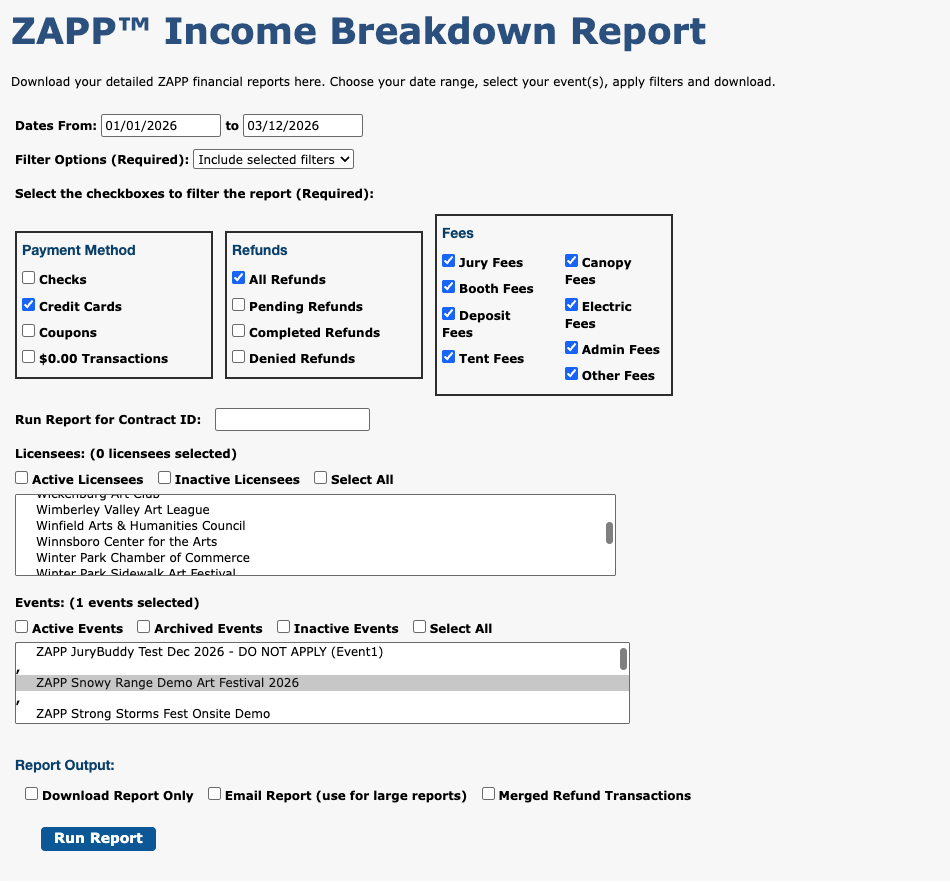
Follow these steps to run a report after going to Reports > Income Breakdown:
Run the report for any dates you want to see.
Select your preferred filter option: include all report data, include only selected filters, or exclude selected filters.
Check the boxes to filter your report. Checking the box will either include or exclude the data, depending on what was selected in the previous step. Options for filtering are:
Payment Method
Checks
Credit Cards
Coupons
$0 Transactions
Refunds
All Refunds: Includes all pending, completed, and denied refunds.
Pending Refunds: Includes refund requests not yet processed.
Completed Refunds: Includes all completed requests.
Denied Refunds: Includes all refunds not processed by ZAPP.
Fees
Jury Fees
Booth Fees
Deposit Fees
Tent Fees
Canopy Fees
Electric Fees
Admin Fees
Other Fees
Choose the event or event(s) you want included in the report.
Check the box, Download Report Only, if you are running a report for a longer period of time, such as an entire year. This will download a spreadsheet more quickly instead of loading the data on the page.
Click Run Report to generate your report. You will be able to download it as a CSV for your records.
The Transaction Table
Your transaction table will load on the page, unless you chose to download the report only instead. The table will include the following:
Payment ID
Date and time the product was purchased
Purchaser’s name
Coupons used
Total paid
Credit card fees associated
Net amount
Additional details, including the product name and transaction ID
Your total revenue collected – with and without credit card fees — will appear at the bottom of the table. If you selected multiple events, the revenue will be broken out by event.