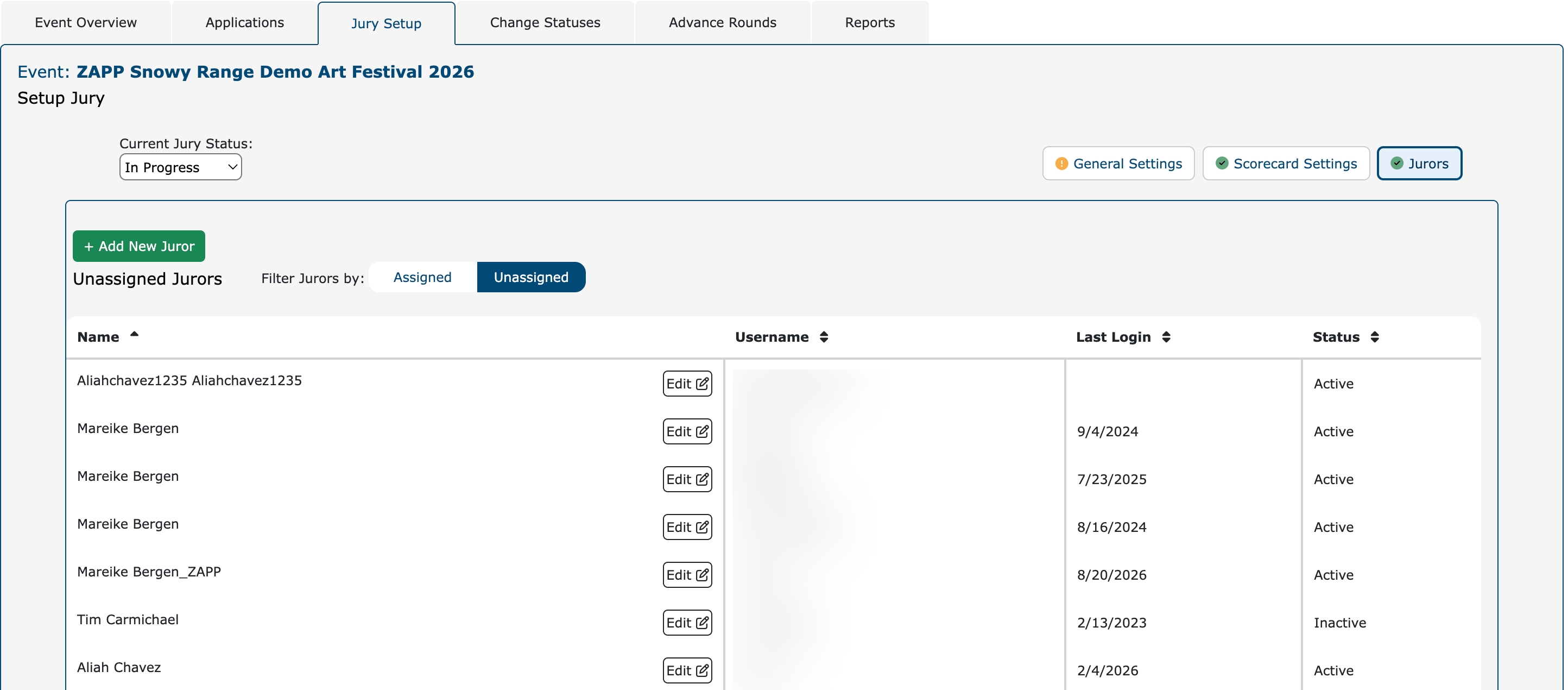

How to Add and Assign a Juror 👤
You can add a juror from two locations within the Jury Administration page:
From the Event Overview tab
Click Add/Edit Juror under the Juror table
From the Jury Setup tab
Click +Add New Juror to create a new juror account.
Fill in the juror’s details
Choose a username and temporary password to create the juror account. Do not share this password by email.
Click Add.
Assign the juror to your event
The Juror Editor page will reload.
Check the box next to your event name.
Click Save.
Share the username you created with the new juror
Instruct the new administrator to set up a password by entering their email address and username under Forgot Password on the Admin Login Page.
The system will send a link for them to set up a new password.

Managing Juror Applications and Removing Scores
Within the Jurors section of the Jury Setup tab, you can see a list of all jurors you’ve created in your ZAPP account — those assigned to an event and unassigned juror profiles as well. Here, you can also view and edit juror details at a glance and remove scores.
Your Assigned juror list will display by default and shows the juror username, last login date, scoring status, and % complete.
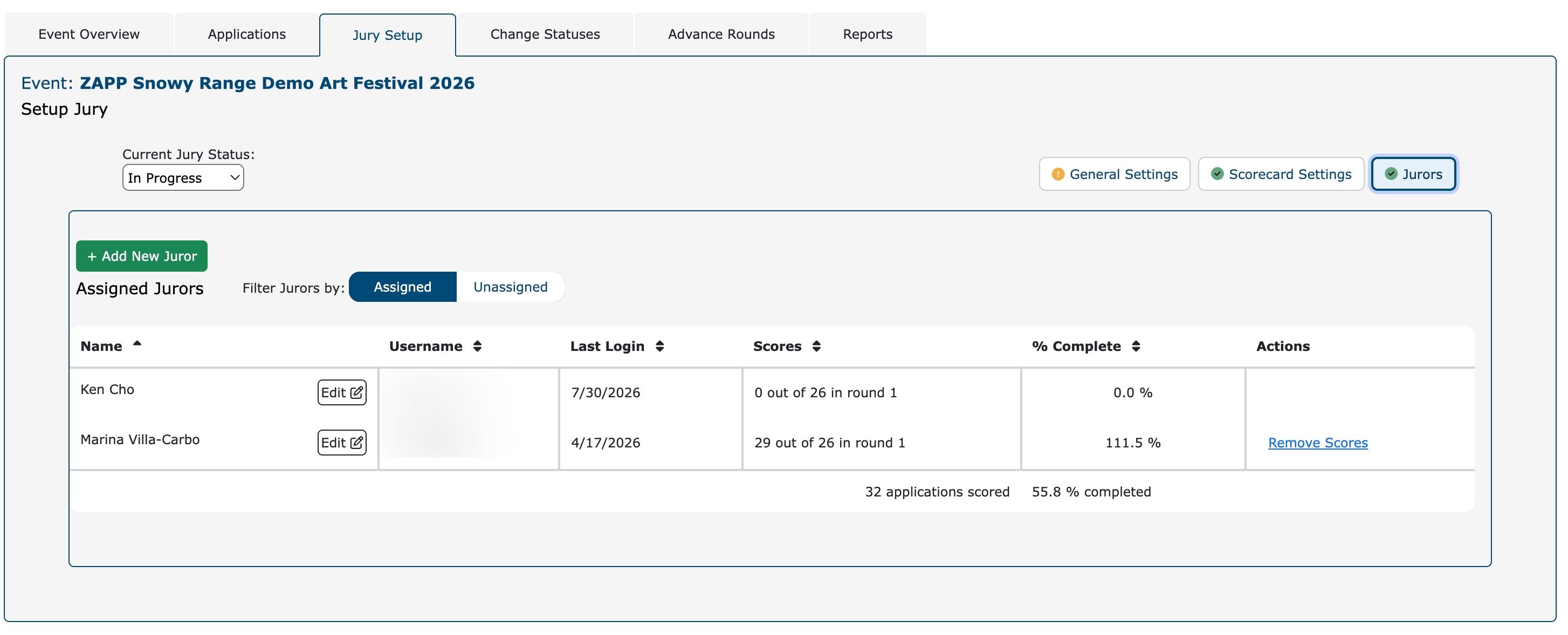
To remove scores for a juror, click Remove Scores. You will see a confirmation box appear.
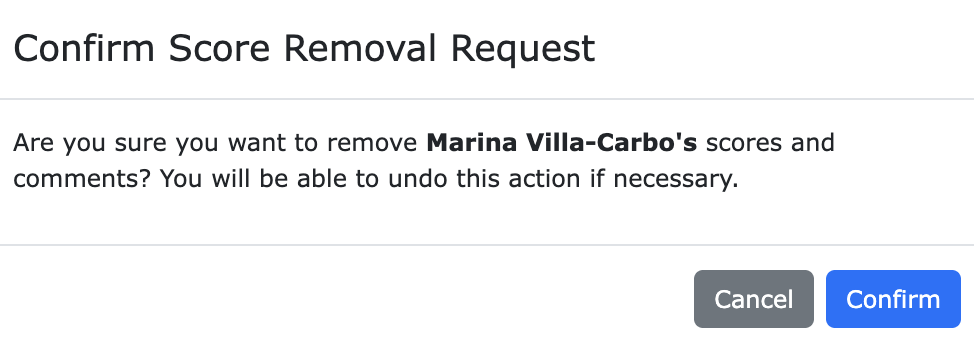
Any scores you remove can always be restored. After removing scores for a juror, you will see an option to restore them in the Action column.
Click Unassigned above the juror table to view juror profiles in your account that are not assigned to score any event.