
How to Score in a Monitor Jury 🗳️
When you're ready to begin scoring:
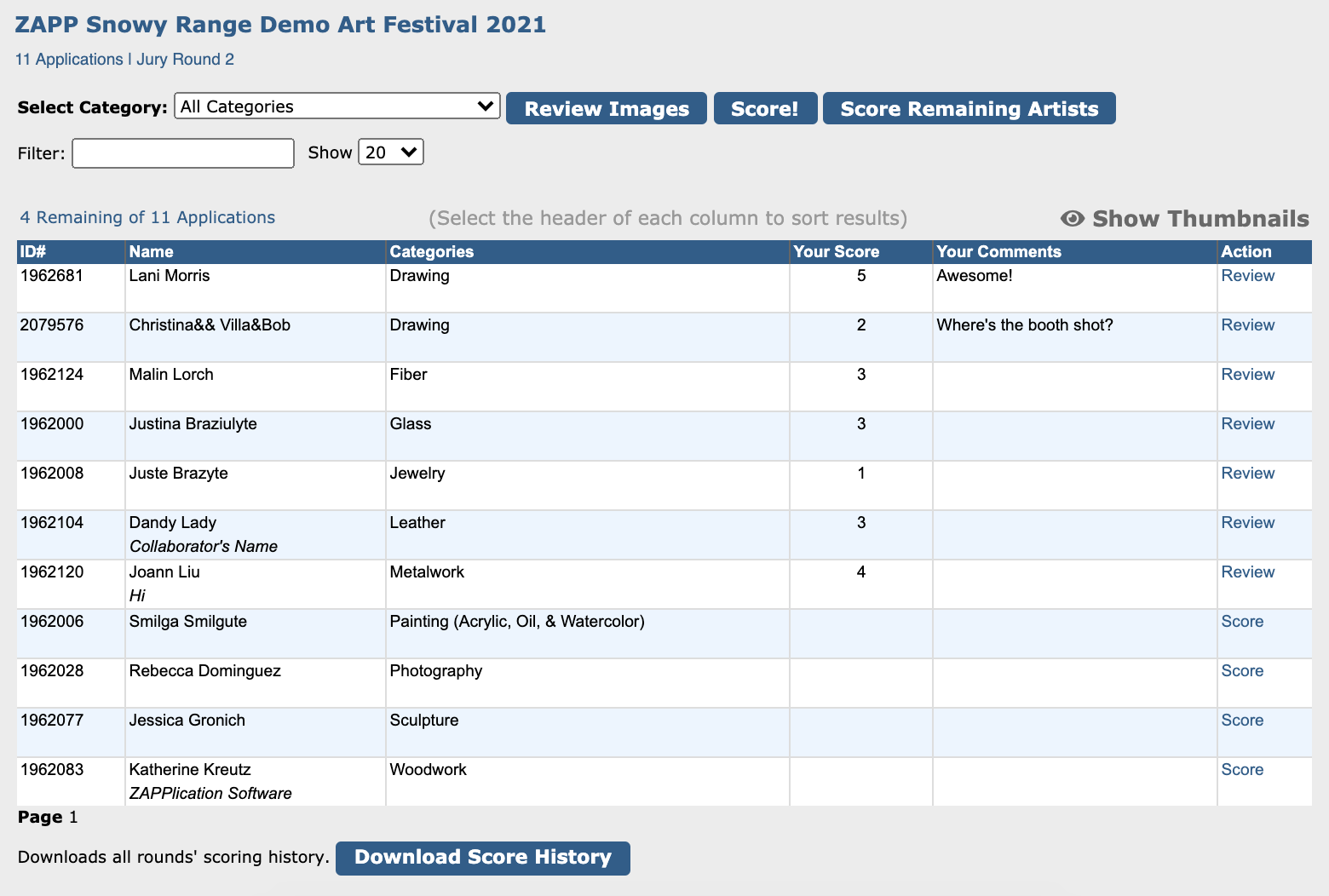
Click Score! or Score Remaining Artists.
You will see a slideshow open in a new window showing each image, one by one.
Review applicant information and artwork details (if applicable).
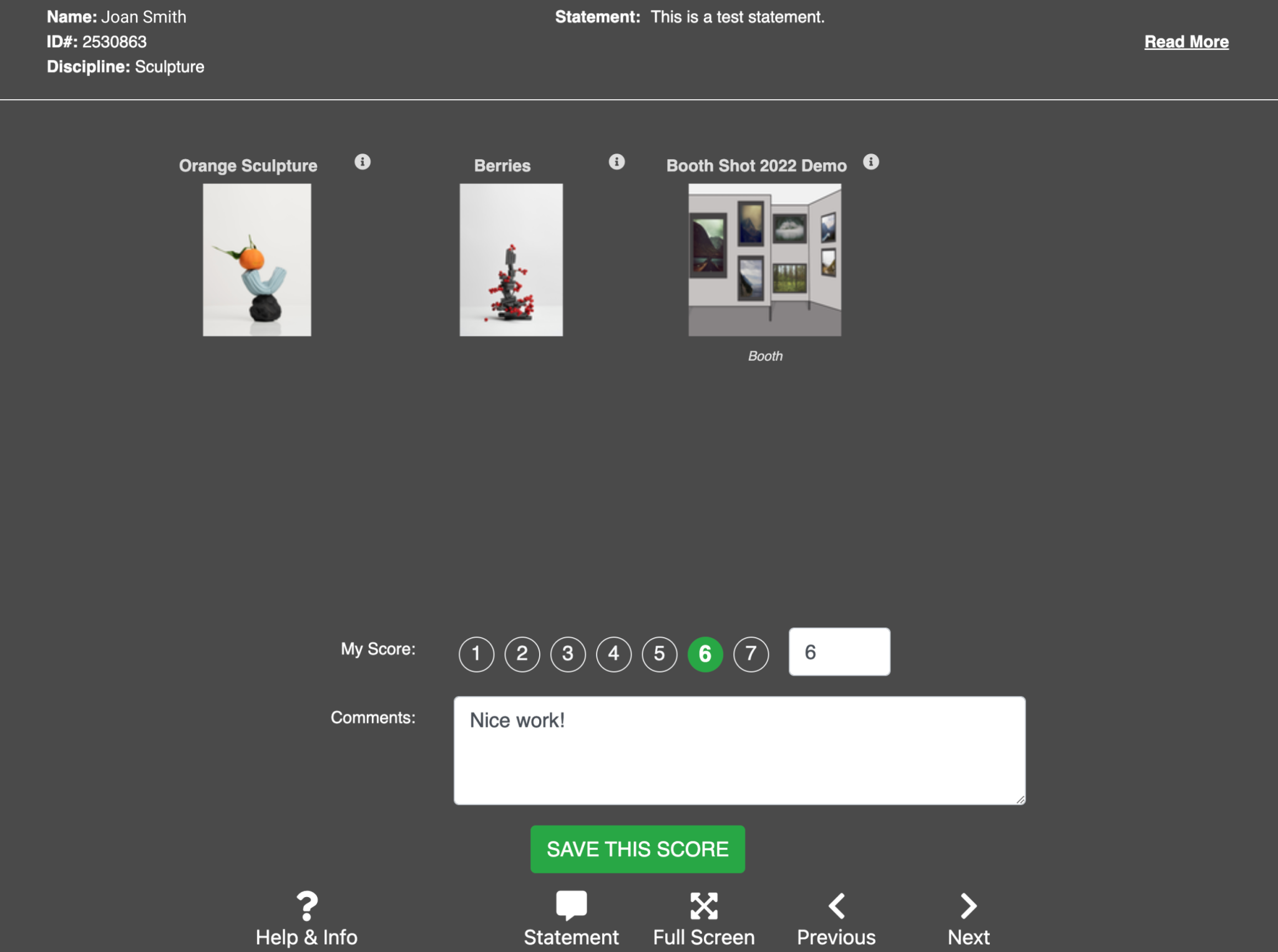
After viewing all of the applicant's images, you will land on the scorecard for that submission. The scorecard will display the scoring type selected by the event administrator.
Click or press a number to enter your score.
Click Yes/No/Maybe to enter a score.
Enter comments in the comment box.
Click Save this Score to proceed to the next application.
⚡ TIP: When you’re done, always click Score Remaining Artists to make sure no applications were missed.
📺 Prefer a visual walkthrough? Watch this short video instead.
Keyboard Shortcuts ⌨️
Prefer using your keyboard? Here are shortcut keys you can use while reviewing and scoring.
Action | Shortcut Key |
|---|---|
Move to the next slide | > (Next) |
Move to the previous slide | < (Previous) |
View artist statement | S |
View image details | I |
View help menu | H |
Enter score (numeric) | Press number key (0–9) |
Select "Yes" | Y |
Select "No" | N |
Select "Maybe" | M |
Add comments | Tab (to enter field) |
Save score and continue | Enter |
Enter full screen mode | F |
You'll know you're on the monitor scorecard if:
The background is dark gray
Artwork thumbnails are shown side by side
You can enter a score and comment on the final screen.
Finalizing Your Scores ✅
Your scores are stored automatically in ZAPP once you save, but you can return to review and change your score or add comments while the jury is in progress.
From the Jury Landing Page:
Click Review in the Action column to revisit an applicant.
Use filters and sort tools to organize your list.
Click Show Thumbnails for a visual overview.
Use Download Score History to save a spreadsheet of your scores and comments.