
How to Score in a Projected Jury 🗳️
When it's time to begin scoring:
You may do this.
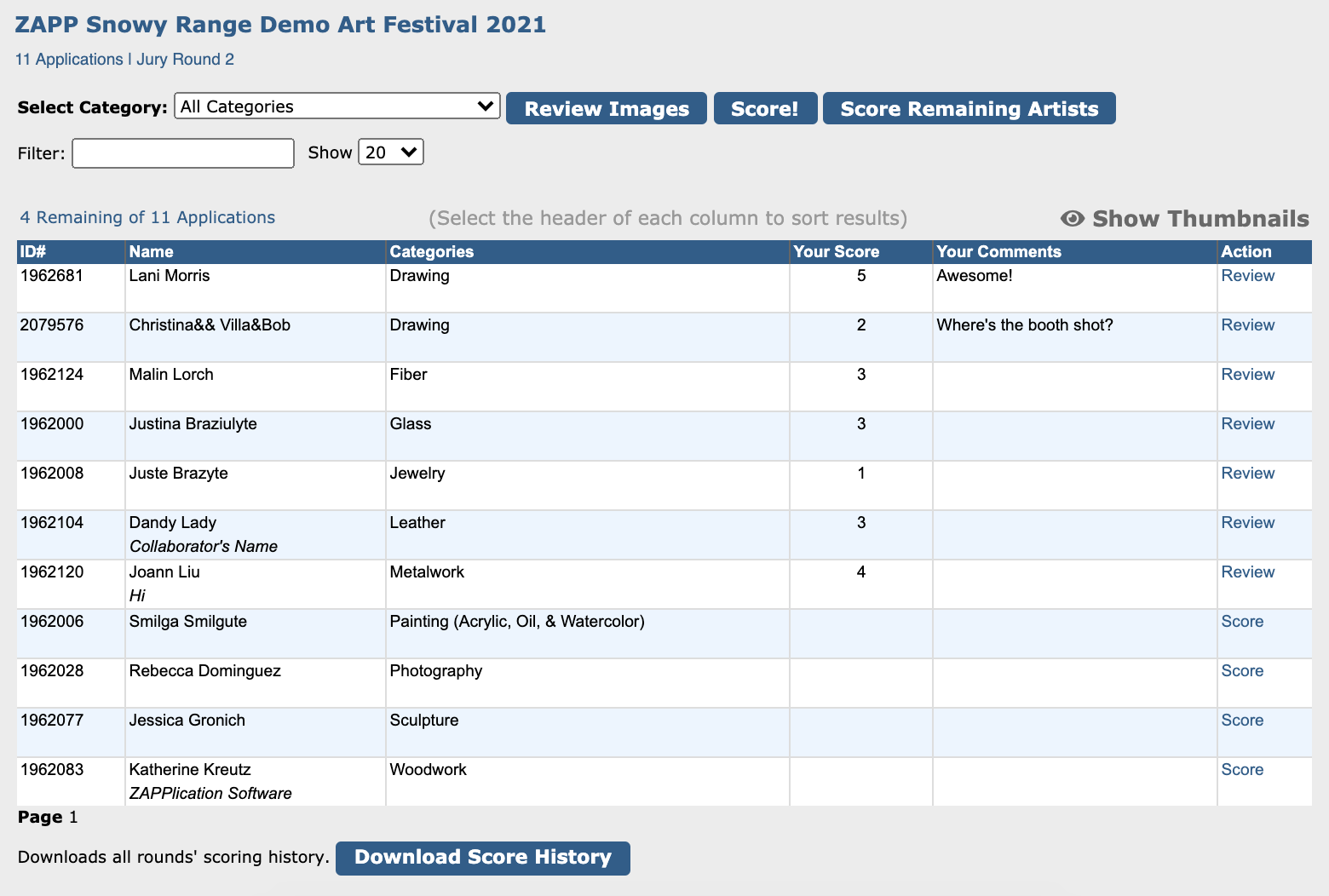
Administrators control how much information you see on the applicant scorecard. You may see one or more artwork thumbnails to help ensure the applicant you're scoring matches the images projected in front of you.
Click the thumbnail to open a larger version of the image.
Click the bubble next to your desired score. Add comments, if applicable. Check with the administrator for scoring criteria.
Click Save Score to save your selection and automatically advance to the next applicant.
⚡ TIP: When you’re done or before taking a break, click Score Remaining Artists to make sure no applications were missed.
Prefer a visual walkthrough? Watch this short video instead. 📺
You'll know you're on the projected scorecard if:
The background is light gray
You see multiple applicant details on one screen
You can enter a score and comment immediately on the scorecard
Finalizing Your Scores ✅
Your scores are stored automatically in ZAPP once you save, but you can return to review and change your score or add comments while the jury is in progress.
From the Jury Landing Page:
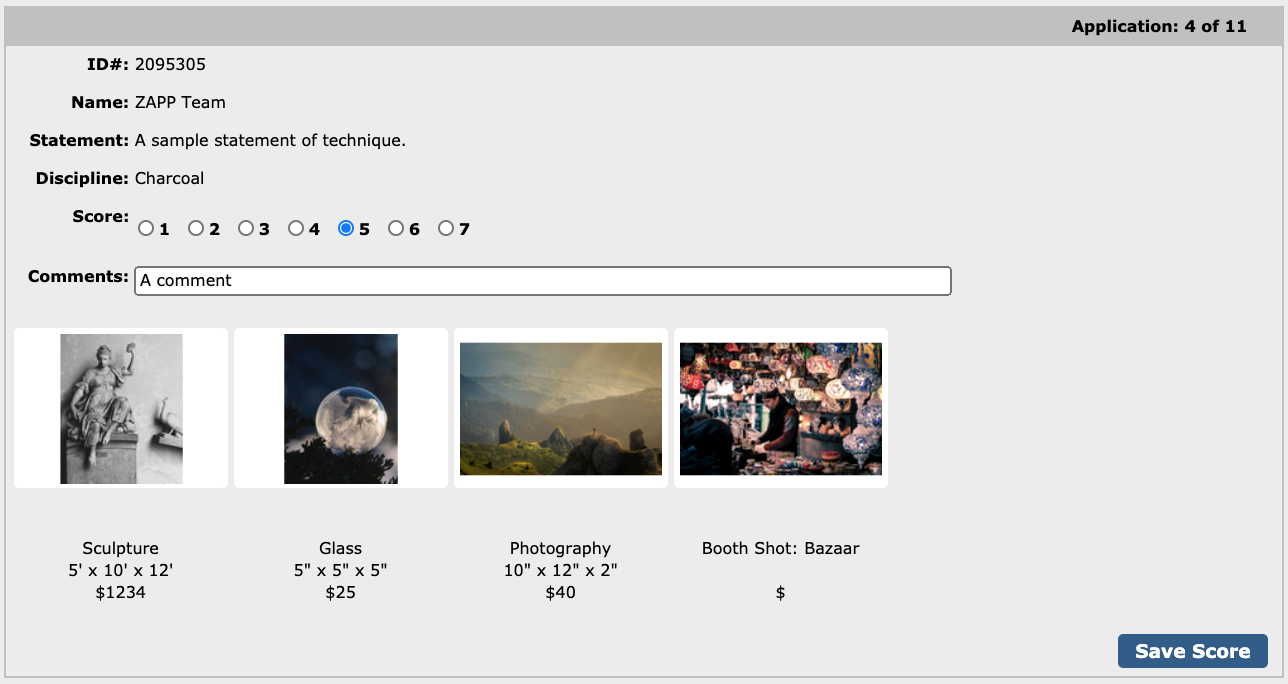
Click Review in the Action column to revisit an applicant.
Use filters and sort tools to organize your list.
Click Show Thumbnails for a visual overview.
Use Download Score History to save a spreadsheet of your scores and comments.